 |

WIRES-II VERSION 3.12 SOFTWARE FEATURES
NEW 21st.Nov.2003
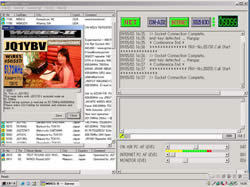 The Version 3.12 upgrade of WIRES-II brings a host of new functions and
convenience features, significantly increasing the utility of WIRES-II
as a first-rate Internet linking protocol. The Version 3.12 upgrade of WIRES-II brings a host of new functions and
convenience features, significantly increasing the utility of WIRES-II
as a first-rate Internet linking protocol.
Version 3.12 of the WIRES-II protocol may be downloaded, free of charge, by registered WIRES users at the WIRES-II Web site: http://www.yaesu.com/jp/en/wiresinfo-en/
|
| |
|
Download Ver. 3.12�@Here |
| WIRES-II Version 3.12 Update Information |
|
Changes in Ver. 3.11 -> Ver. 3.12 update
|
1. If you send the (new) command #6666D or #66666 to another node, and
have ANNOUNCEMENT enabled under �gFile-Property-General settings,�h
an announcement similar to one of the following
examples will be issued:
(In standby while connected to node 5100): �gThis is JQ1YBG, connected
to 5100.�h
(While not connected): �gThis is JQ1YBG. Not connected.�h
2. The display of the node to which you are connected (in the log window)
has been simplified.
3. A method of cutting off a �gnuisance node�h from your Round Table QSO Room
(if
you are the
moderator) has been added).
Details of this function for Round Table QSO Room owners-Click here
4. A bug, whereby the maximum number of stations on a Round Table QSO Room were not being allowed to enter, was
fixed.
5. Some other minor �gfine tuning�h to WiRES-II performance was incorporated.
|
|
|
WIRES-II Version 3.11 New
Features |
The features which are upgraded in Version 3.11, as compared to Version
2, are as follows:
1. CHAT FUNCTION
You can send and
receive Chat messages to other nodes, regardless of your
current connection status within WIRES-II.
Just enter the
Node number, followed by a space, and you can begin your
message.
You do not need to be connected to that node
currently in order to send the message. |
2. ON-LINE NODE LISTING
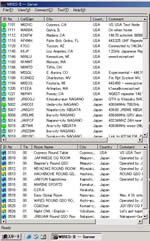
In your
configuration folder, if you check in the LIST ALL ACTIVE ID
box under CALL OPTION, your screen will show all
currently-active WIRES-II nodes.
Once this list comes up, a
right click on your mouse will enable immediate connection to
that node!
On the left side of the ID box are icons
indicating the current TX/RX status of the individual nodes. A
yellow background indicates that node is currentrly
transmitting.
Four different icons are avialble for
selection in the setup protocol found in File Personal ID in
the software. |
 |
3. DIRECT CONNECTION
You can also now
connect to a node directly from the command line via a simple
Connect To procedure. Disconnect commands are also possible.
|
4.
ROUND-TABLE QSO ROOM MODE
This much-requested
feature is now reality!
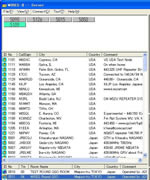
A separate box shows the
currently-active Round-Table QSO Room nodes.
In the Round
Table Room mode, an unlimited nuymber of Nodes may check in
and join in a round-table QSO, reflector style. A list of the
Nodes in the Round Table will appear on the left of the
screen, and thr transmitting node will have its I.D. number
shift to blue, so you ll always know who is
talking.
Currently, during initial testing, Node #1101D
(W6DXC) is the check-in node for Round Table QSOs. But any
node will be capable of starting up a Round Table, of
course.
There is no limit of time you may remain in a Round
Table, and an option exists to set NO TIME LIMIT while in
Round Table QSOs, while leaving your normal Time-Out Timer
shutoff time in place.
You can also accept non-Round-Table
calls while in a Round Table QSO, if you like. After you have
temporarily been engaged I the QSO off the Round Table, you
will be automatically returned to the Round Table unless you
disable the option for automatic return.
If you right click
on the node number line for any Round Table QSO Room node, you
can click on an option to Get Info about that node. If the
Round Table QSO Room node manager has uploaded information of
interest, it will be displayed here. Information might
indicate location and frequency of the node, Grid Square,
weather information, etc.
Round Table QSO Rooms may operate
simultaneously at a number of nodes, but prior registration of
the Room is required. The procedure for registering the Room
will be posted on the WIRES Web site. |
 |
5.
SOUND SETTING FEATURE
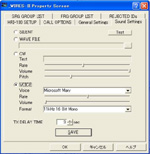
A versatile Sound
Setting option is now available, to establish annumber of
connection verification states. The sounds include:
WAV A
voice WAV file may be used to confirm the connection
CW CW
confirmation, with volume, speed and pitch adjustment, may
also
be chosen. Windows XP is required for pitch and
volume control.
Synthesized A synthesized sound may also be
chosen.
Silent You may also disable the connection
verification.
All features of this new capability may also
be realized when not using XP by downloading Microsoft Speech
SDK 5.1 from their Web site:
(http://www.microsoft.com/speech/download/sdk51/)
At the
time of connection, for example, a typical voice message might
be This is W6DXC, connect from 5100 or This is W6DXC, connect
to 5100. If another Node is calling yours, you will hear
Connect request from <<ID number>>. And during a
Round Table QSO, you hear <<ID number>> In or
<<ID number>> Out as stations come and go.
When
you are setting up the node, and place a check in the box for
Announcement under General Setting, the Connect Request and In
and Out comands are sent whether you have a WAV file, a CW ID,
or no sound (Silent) configured.
The volume and speed of
these CW or voice announcements can also be adjusted. All the
connection parameters are set within the General Setting
folder that you may change at any time. |
|
6. RANDOM CALLING FEATURE
A new feature allows
you to call CQ using the ID numbers #7777D or #77777. In this
mode, the WIRES-II Server will randomly choose an active Node
from the Node List, and you will be connected to that Node.
What a great way to meet new Hams! |
7. RECONNECT FEATURE
By dialing #8888D or
#88888, you will automatically be connected to the last Node
to which you were successfully connected. |
8.
POP-UP PICTURES AND QSL CARDS!
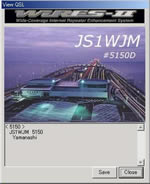
When you enable the
new Pop-Up function, you can have a picture of yourself, the
Date and Time, and even an electronic QSL Card can be made to
appear. You can include a brief introduction of yourself, and
a 320 x 240 QVGA BMP file will serve to transmit the QSL Card.
So now you can exchange pictures, allowing you to put a face
to that voice far across the planet!
When a check has entered into QSL
EXCHANGE box under Personal ID, when for the first time
receiving the picture, until reception is complete, sending
and receiving of sound is not possible.
There also is
an option to look at the introductory message stored by other
Node owners, if you right-click on GET INFO? while selecting a
Node from the ID List. If you like you can include your e-mail
address in this introduction, for the information (including a
picture, if you like) of other Node owners. If you have
connected directly to a particular node in the past, any
picture stored by the other node will be indicated when you
click on GET INFO. |
 |
9. CHANGE TO LOG WINDOW
The Log window has
been changed to add the year, so the format now will be
MM/DD/YY HH:MM, with the Seconds being deleted.
And if a
Round Table QSO has been completed, it indicates that the QSO
was in the Round Table mode.
The log will continue to
register even if you are called from another node during the
current connection. |
10. NEW FILE OPTION: MAKE LIST
When this option is
enabled, the status window from your Node will be stored to an
HTML and a CSV file, for future reference. This data is stored
every ten minutes.
The setup technique will appear soon on
the WIRES Home Page.
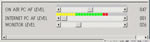
11. A simple audio level meter has
been added in the audio adjustment bar window below the ON AIR
PC AF LEVEL volume bar. When a check is inserted under General
Setting ? LEVEL METER, this bar appears. Depending on how
heavily the PC is engaged in processing, there may be times,
though, when this indication may not be displayed on slower
processor computers. |
| 11. A simple audio level meter has been added in the audio
adjustment bar window below the ON AIR PC AF LEVEL volume bar.
When a check is inserted under General Setting ? LEVEL METER,
this bar appears. Depending on how heavily the PC is engaged
in processing, there may be times, though, when this
indication may not be displayed on slower processor
computers. |
 |
| 12. If
you place checks in the ROUND TABLE QSO ROOM, SRG, and FRG
GROUP CALL boxes during setup, then the nodes being called
under the group call will light up in blue on the ID window of
the computer. |
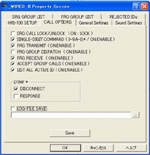
13. NEW CALL OPTIONS Commands
SINGLE-DIGIT COMMAND
When this
is enabled, you can utilize a single DTMF digit (0-9, A- D,
and *) for commands.
FRG TRANSMIT ON
When this command
is inabled, you can transmit to another FRG node using a
six-digit access command (like #1101D). If this is disabled,
you can only contact other SRG nodes and those FRG nodes
listed in your FRG GRoup Call lists.
FRG GROUP
DISPATCH
You can now enable or disable FRG Group calling
independently from other settings.
FRG RECEIVE ON
This
command enables or disables the ability to receive FRG calls
(separately from talking to them, per the FRG TRANSMIT ON
discussion above).
ACCEPT GROUP CALLS
This command lets
you enable or disable the acceptance of group calls from other
nodes. |
 |
| Changes information from Ver.2.0 to Ver.2.11beta here. |
|
|
|
|


